Users & Roles
SentriKat uses role-based access control (RBAC) to manage user permissions. Users are assigned roles within organizations, and their access is scoped accordingly.
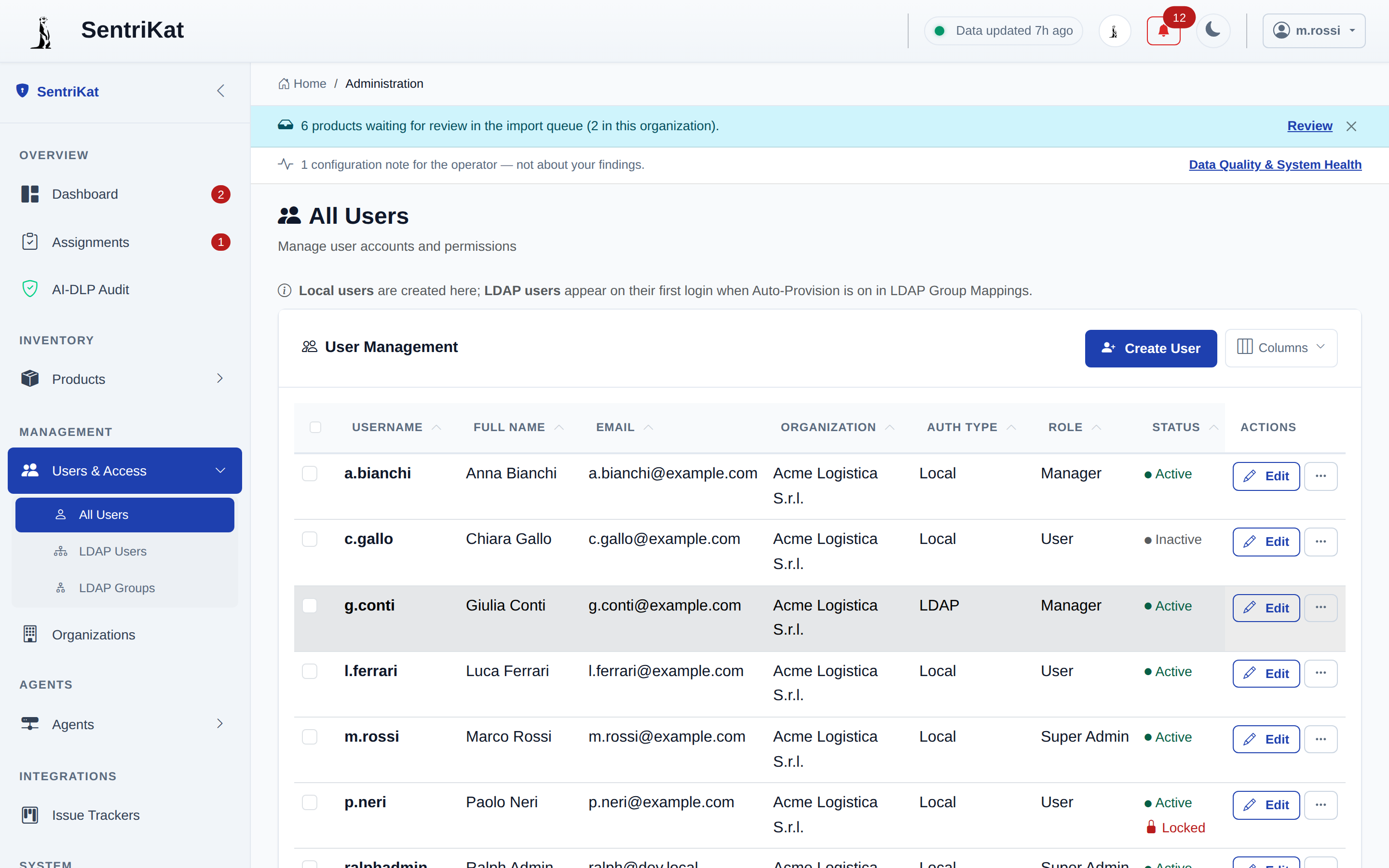
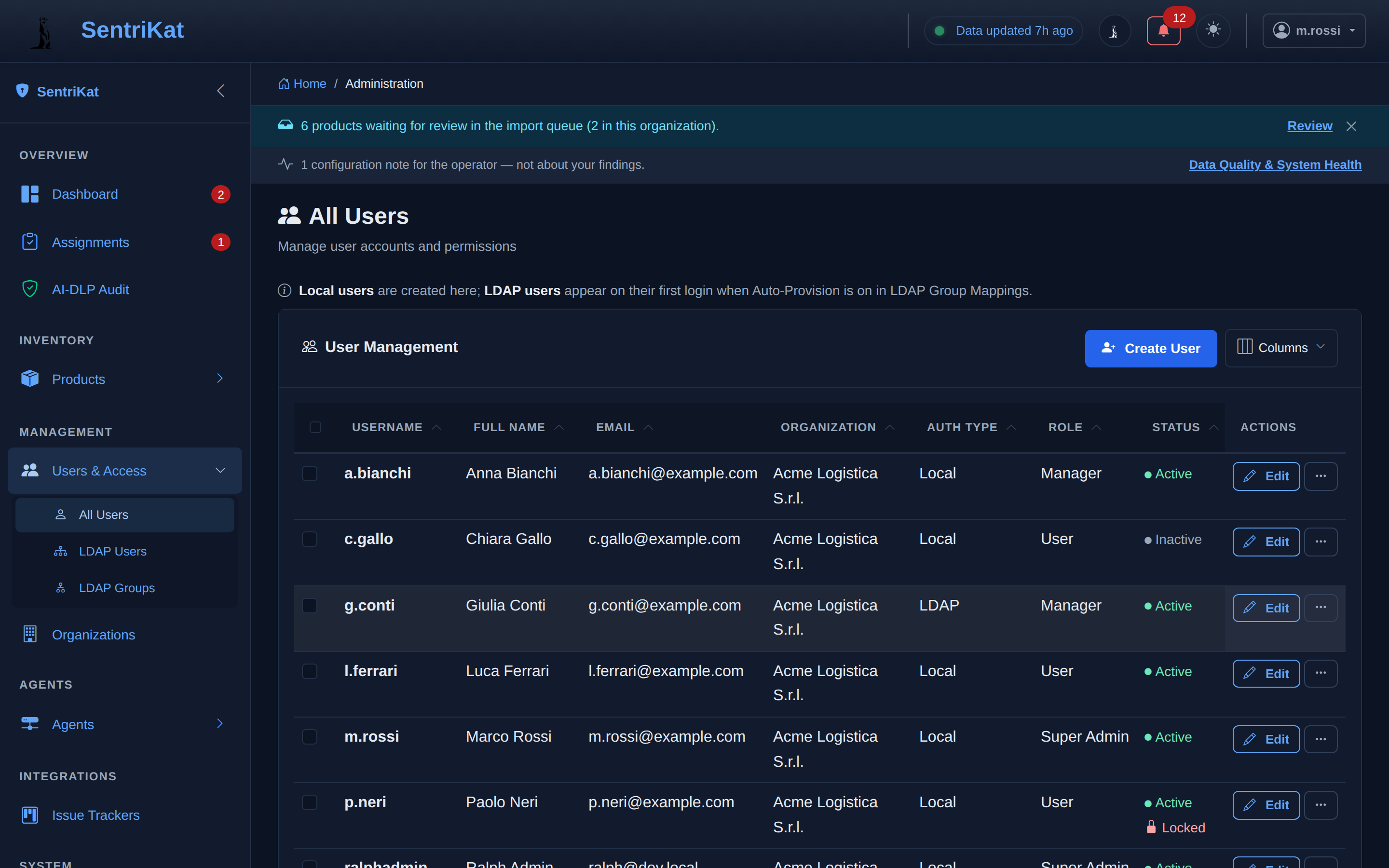
Role Hierarchy
| Role | Scope | Description |
|---|---|---|
super_admin | Global | Full access to all organizations and system settings |
org_admin | Organization | Full control within their assigned organization |
manager | Organization | Manage products, acknowledge vulnerabilities, view reports |
viewer | Organization | Read-only access to dashboards and vulnerability data |
Permission Matrix
| Permission | Super Admin | Org Admin | Manager | Viewer |
|---|---|---|---|---|
| View dashboard | ||||
| View vulnerabilities | ||||
| Export data | ||||
| Add/edit products | ||||
| Acknowledge vulnerabilities | ||||
| Manage agents | ||||
| Manage API keys | ||||
| Manage users (within org) | ||||
| Manage organizations | ||||
| System settings | ||||
| License management |
Creating Users
Via the Admin Panel
- Go to Users & Access → All Users
- Click Add User
- Fill in the form:
- Email: User's email address (used for login)
- Display Name: Full name
- Password: Initial password (user can change later)
- Organization: Assign to one or more organizations
- Role: Select role per organization
- Click Create User
Via Invitation
- Go to Users & Access → All Users
- Click Invite User
- Enter the email address and select a role
- Click Send Invitation
The user receives an email with a link to set their password and complete registration.
SMTP Required
Email invitations require SMTP to be configured. See Configuration for SMTP settings.
Via API
curl -X POST https://sentrikat.example.com/api/users \
  -b cookies.txt \
  -H "Content-Type: application/json" \
  -d '{
    "email": "[email protected]",
    "display_name": "Jane Analyst",
    "password": "initial-password-123",
    "organization_id": 1,
    "role": "manager"
  }'
Managing Users
Editing a User
- Go to Users & Access
- Click the user's name
- Update fields as needed
- Click Save
Changing Roles
- Open the user's profile
- In the Organizations section, click the role dropdown
- Select the new role
- Click Save
Warning
Downgrading a user from org_admin to viewer immediately revokes their management permissions. Active sessions are updated on the next page load.
Disabling a User
Rather than deleting, you can disable a user account:
- Open the user's profile
- Toggle Account Active to off
- Click Save
Disabled users:
- Cannot log in
- Do not receive alert emails
- Are preserved for audit trail purposes
- Do not count against the license user limit
Resetting a Password
- Open the user's profile in Users & Access
- Click Reset Password
- Enter a new temporary password
- Click Save
The user must change this password on next login.
- On the login page, click Forgot Password
- Enter the registered email address
- Follow the link in the reset email
- Set a new password
Note
Self-service password reset requires SMTP configuration.
Multi-Organization Access
A single user can belong to multiple organizations with different roles:
# Assign user to additional organization via API
curl -X POST https://sentrikat.example.com/api/users/5/organizations \
  -b cookies.txt \
  -H "Content-Type: application/json" \
  -d '{
    "organization_id": 3,
    "role": "viewer"
  }'
When a user belongs to multiple organizations, they can switch context using the organization selector in the top navigation bar.
LDAP/SSO Users
When LDAP or SAML SSO is configured, users are provisioned automatically on first login:
- Display name and email are synced from the directory
- A default role is assigned based on group mappings
- Passwords are managed by the identity provider
See LDAP/SSO for configuration details.
Audit Log
All user actions are recorded in the audit log:
- Go to Settings → Compliance, where the audit log lives alongside the reports
- Filter by user, action type, or date range
- Export as CSV if needed
Tracked actions include:
- Login/logout events
- Product changes
- Vulnerability acknowledgments
- Configuration changes
- User management actions
Session Management
| Setting | Default | Environment Variable |
|---|---|---|
| Session timeout | 4 hours | PERMANENT_SESSION_LIFETIME |
| Secure cookies | Off | SESSION_COOKIE_SECURE |
| HTTP-only cookies | On | SESSION_COOKIE_HTTPONLY |
| SameSite | Lax | SESSION_COOKIE_SAMESITE |
See Configuration for all session settings.
Next Steps
- Set up LDAP/SSO authentication
- Configure organizations for multi-tenant access
- Set up notifications for user alerts