Agents
Agents automatically collect software inventory from your systems and keep it fresh: SentriKat then matches it against the exploited-vulnerability catalogue, the public databases and the other vulnerability sources.
Ways to get inventory in
| Method | Platform | How it runs | Best for |
|---|---|---|---|
| Windows Agent | Windows | Scheduled Task (4h) + heartbeat | workstations, servers |
| Linux Agent | Linux (systemd) | systemd timers (4h) + heartbeat | servers, VMs |
| macOS Agent | macOS 12+ | LaunchDaemons (4h) + heartbeat | Mac fleets |
| Container Scanning | Docker/Podman hosts | with the agent, opt-in per key | image vulnerabilities |
| Extension & Dependency Scanning | any agent | opt-in per key | VS Code extensions, code deps |
| CSV / SBOM import | any | manual or scripted | one-off or air-gapped inventories |
| REST Import | any | your automation | Lansweeper/CMDB sync, custom sources |
| PDQ / SCCM / Intune / GPO | Windows fleets | push the agent at scale | managed networks |
Installing agents: two official methods
Every machine gets its own key with either method (the shared org key never leaves SentriKat):
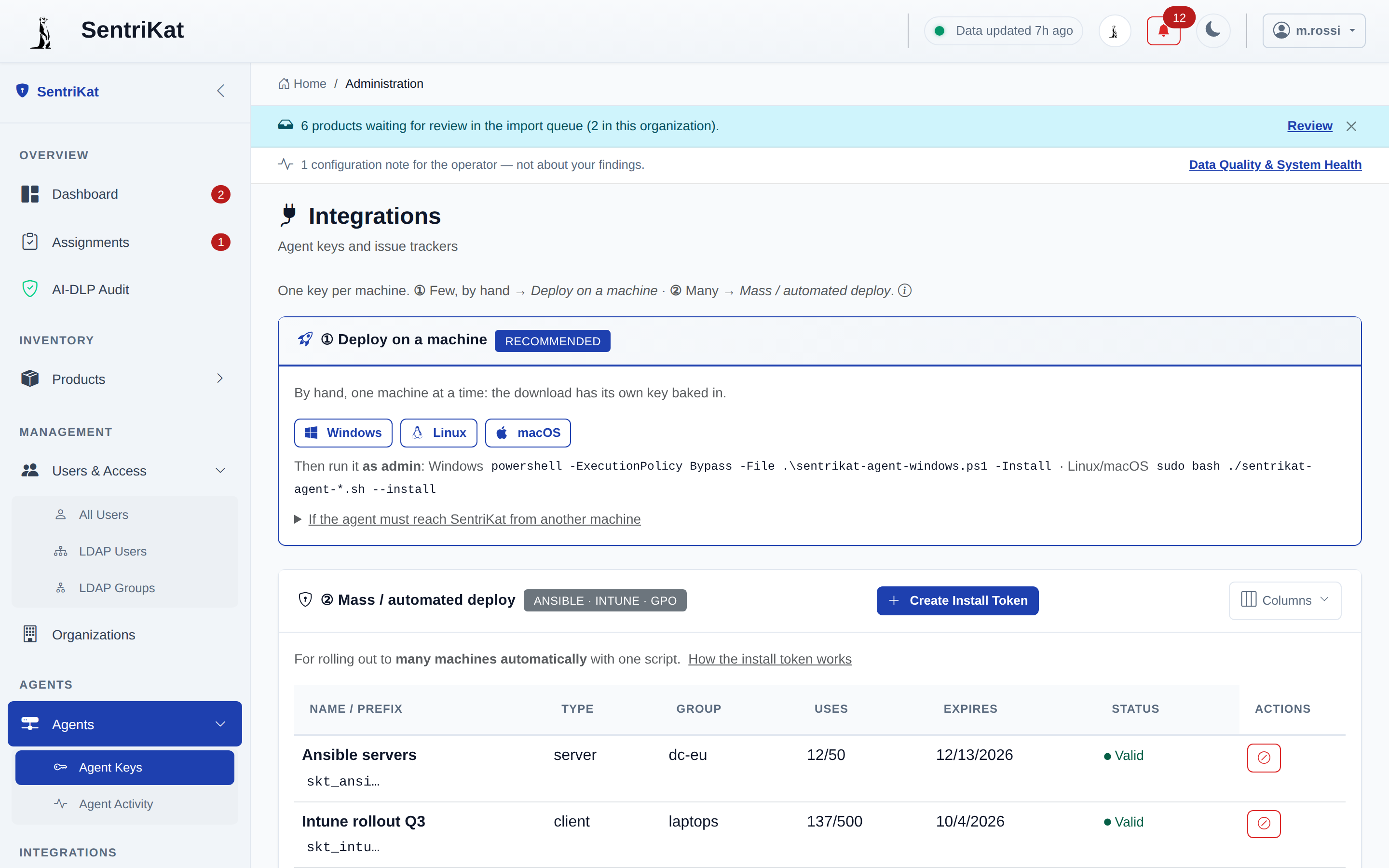
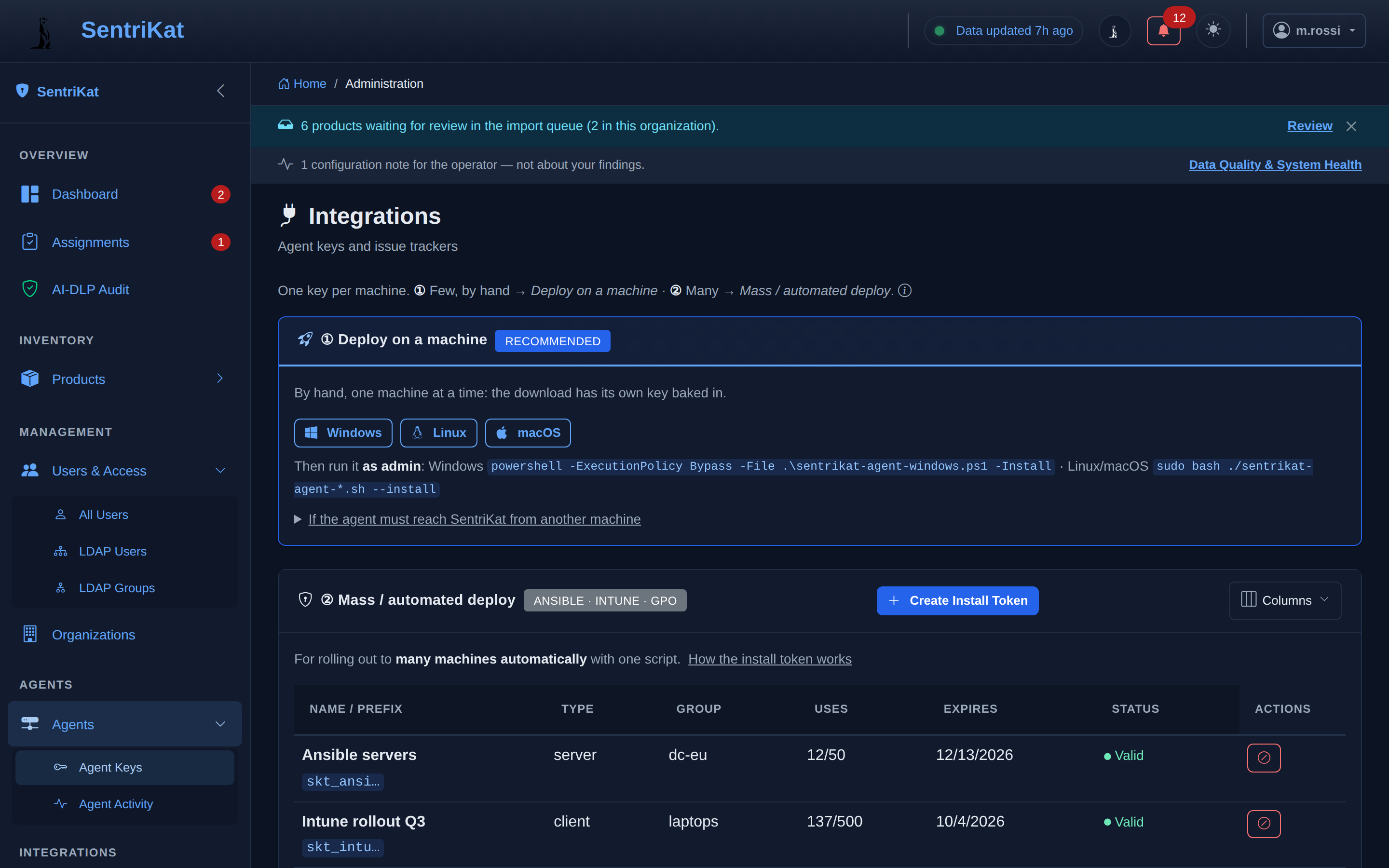
- Deploy on a machine (recommended for a few hosts): download from Agents → Agent Keys: the per-host key is already baked into the file, nothing to paste. Run the one-line install from the per-OS guide.
- Mass / automated deploy: create a revocable install token (Agents → Agent Keys → Create Install Token) and push the script + ready-made command with your tooling. Each machine exchanges the token once for its own per-host key.
Per-OS commands, options and troubleshooting: Windows · Linux · macOS.
Architecture
graph LR
    A[Agent] -->|Inventory Report| B[SentriKat API]
    A -->|Container Scan| B
    A -->|Extension Scan| B
    A -->|Dependency Scan| B
    B -->|Store| C[Database]
    C -->|Match| D[Exploited / CVE records / packages]
    D -->|Alert| E[Notifications]
Agents collect installed software (OS packages, applications), optionally scan container images / VS Code extensions / code dependencies (all opt-in per key), send delta updates on a schedule, and poll a lightweight heartbeat for commands (e.g. "scan now", version drift checks).
Shared org keys (advanced)
Methods ① and ② above manage keys for you. For scripted setups and the REST API you can still create a shared organization key under Agents → Agent Keys:
- Key Type:
ServerorClient, separates infrastructure from end-user workstations; the dashboard's Servers/Clients filters group by it - Max Assets, Allowed IPs, Auto-Approve
- VS Code Extension Scanning / Code Dependency Scanning: opt-in capabilities for agents using that key (no client-side config needed)
The key is shown once at creation. Prefer per-host keys where possible: one compromised machine never exposes a shared secret.
Managing agents
Go to Agents > Agent Activity to see every enrolled machine: last seen, software count, agent version, offline/stale flags, per-asset notes and an activity timeline. Endpoints also appear under Inventory → Endpoints tied to their products.
| Status | Meaning |
|---|---|
| Online | checked in within the last 15 minutes |
| Offline | no check-in for more than 15 minutes (alerting available) |
| Stale | no check-in for 30 days, i.e. the machine is probably gone rather than briefly down. Configurable per organization |
Decommission an agent from Agent Activity when a machine is retired: historical data is preserved and the seat stops counting against your license.