Alerts
Configure notifications to stay informed about new vulnerabilities. (Pro)
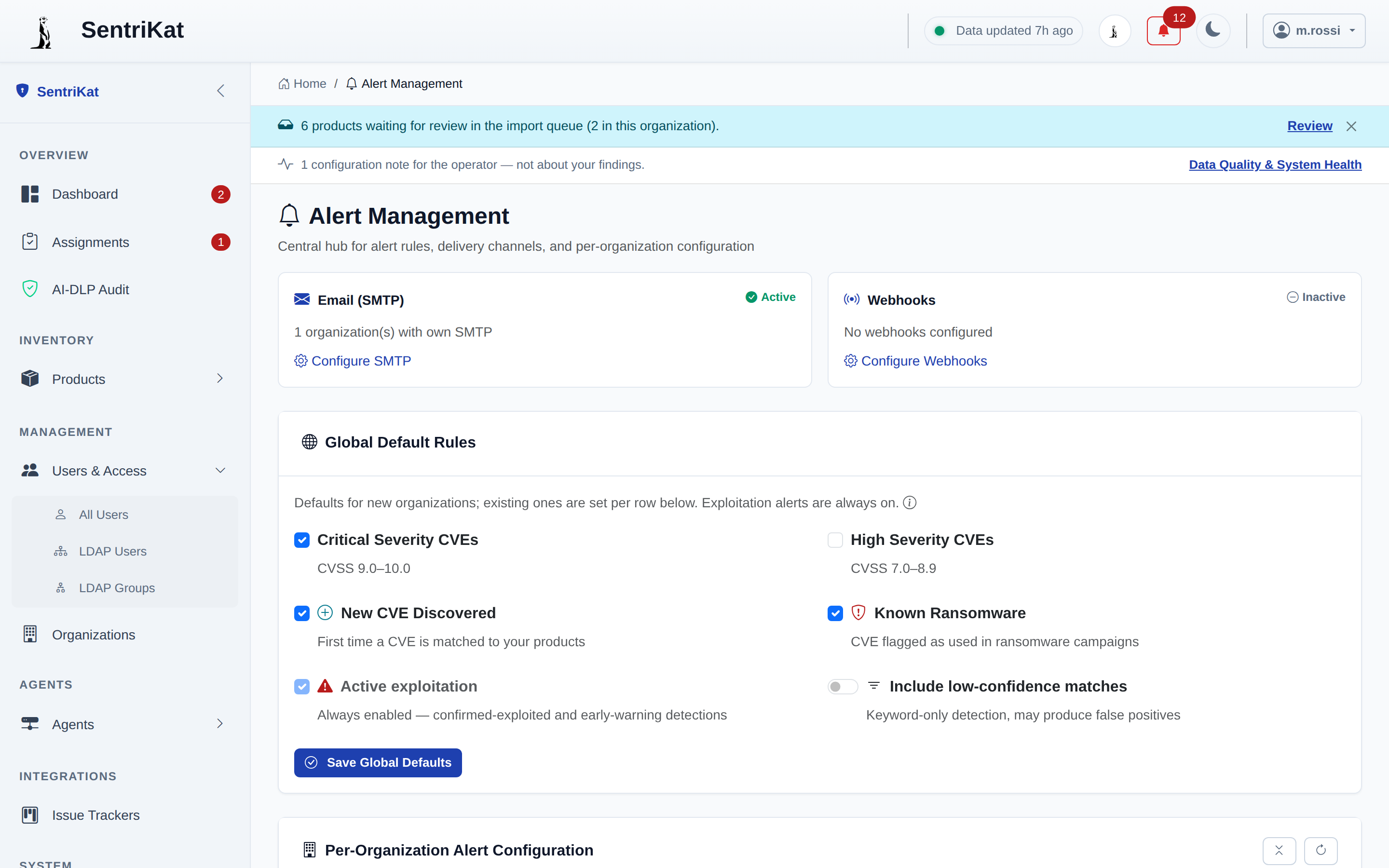
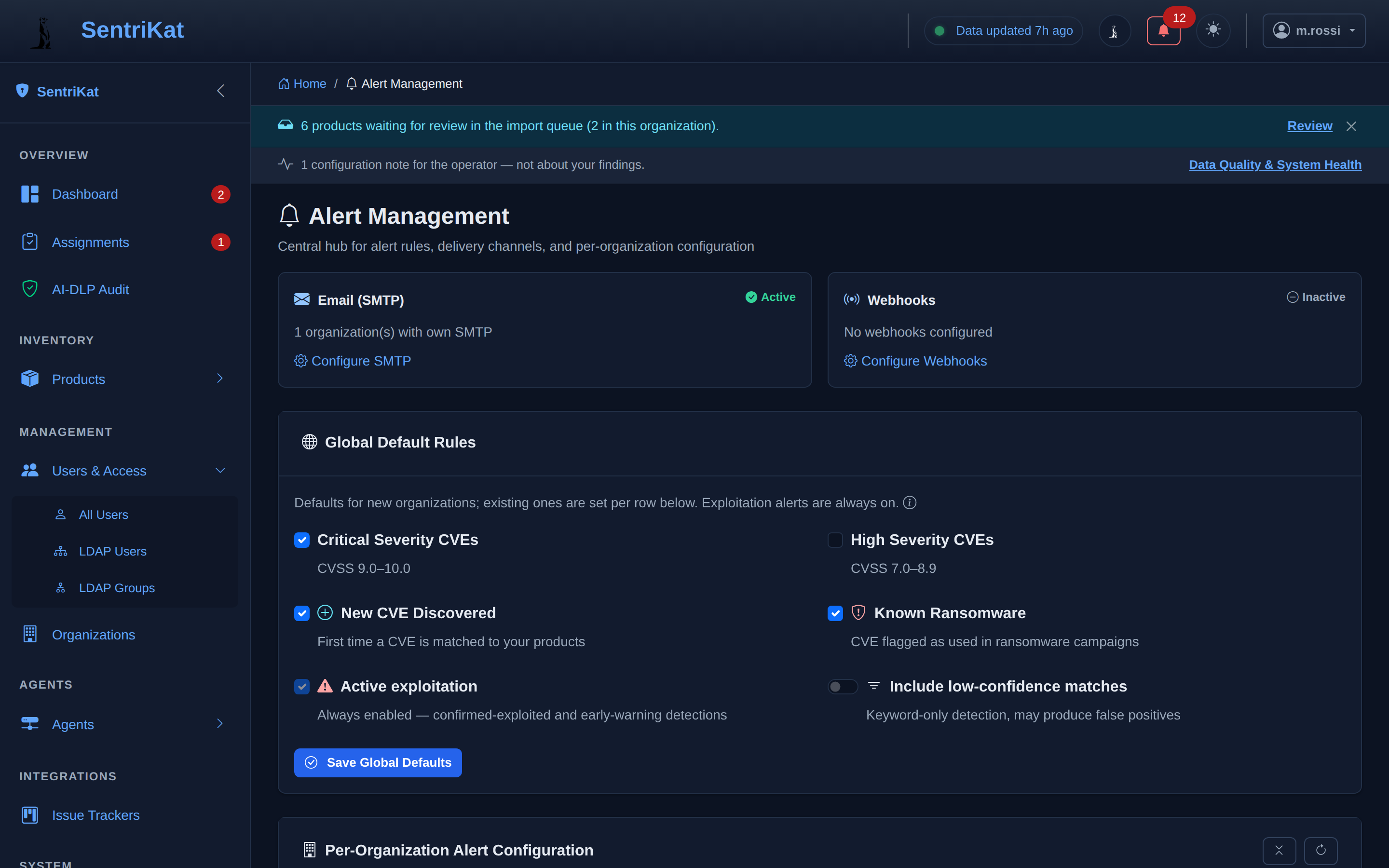
Alert Types
| Type | Trigger | Default |
|---|---|---|
| Critical CVE | New critical vulnerability matches | Immediate |
| Ransomware | CVE with ransomware indicator | Immediate |
| New CVE | Any new exploited match | Daily digest |
| Due Date | Approaching remediation deadline | 7 days before |
Email Configuration
SMTP Setup
- Go to Settings → Email
- Configure SMTP:
- Server: SMTP hostname
- Port: 587 (TLS) or 465 (SSL)
- Username: SMTP user
- Password: SMTP password
- From: Sender address
- Click Test Connection
- Save
Recipients
Configure alert recipients per organization:
- Go to Management → Organizations
- Open the organization for editing
- Use the Alert Settings tab: add the email addresses and set the preferences per recipient. The Webhook tab next to it is for the webhooks
Webhook Configuration
Send alerts to chat platforms:
Slack
- Create an Incoming Webhook in Slack
- Go to Settings > Alert Management
- Add the webhook:
- Type: Slack
- URL: Webhook URL
- Channel: Optional override
- Test and save
Microsoft Teams
- Create Incoming Webhook connector in Teams
- Add to SentriKat:
- Type: Teams
- URL: Webhook URL
- Test and save
Discord
- Create webhook in Discord channel settings
- Add to SentriKat:
- Type: Discord
- URL: Webhook URL
- Test and save
Custom Webhook
For custom integrations:
{
  "type": "custom",
  "url": "https://your-endpoint.com/webhook",
  "method": "POST",
  "headers": {
    "Authorization": "Bearer your-token"
  }
}
What fires, and to whom
Alerts are configured per organization, not per user. Everyone who should be told is on the organization's notification list.
The alert for a vulnerability confirmed as exploited is always on and cannot be switched off.
Alert history
The Alerts page lists what was sent, when, and whether it was delivered.
Manual Triggers
Manually send alerts:
# Trigger critical CVE alert
curl -X POST http://localhost:5000/api/alerts/trigger-critical \
  -b cookies.txt

# Trigger webhooks
curl -X POST http://localhost:5000/api/alerts/trigger-webhooks \
  -b cookies.txt
Issue Tracker Integration
SentriKat can automatically create issues in your project management tools when vulnerabilities are detected. See the dedicated Issue Trackers guide for setup instructions.
Supported platforms:
- Jira
- GitHub Issues
- GitLab Issues
- YouTrack
SIEM Forwarding
For forwarding vulnerability events to your SIEM via syslog, see the SIEM Integration guide.
Troubleshooting
Emails Not Sending
- Check SMTP configuration
- Verify firewall allows outbound SMTP
- Check spam folders
- Review alert logs
Webhooks Failing
- Verify webhook URL is accessible
- Check authentication if required
- Review webhook logs for errors
No Alerts Triggering
- Verify vulnerabilities match products
- Check severity filters
- Verify time window settings
- Check if alerts are acknowledged