Dashboard
The dashboard is the main screen and the vulnerability list. There is no separate page to go to: what needs doing is here.
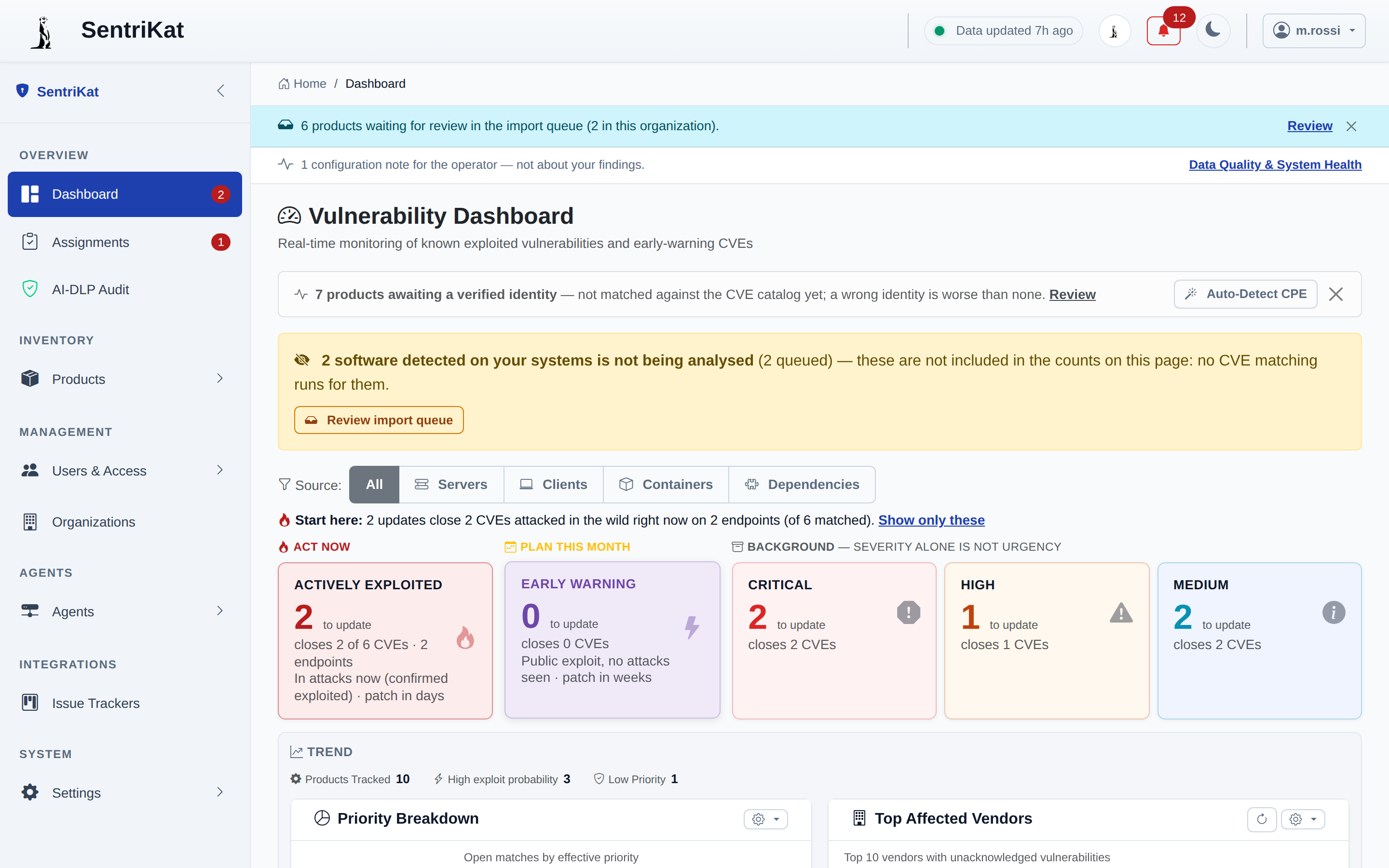
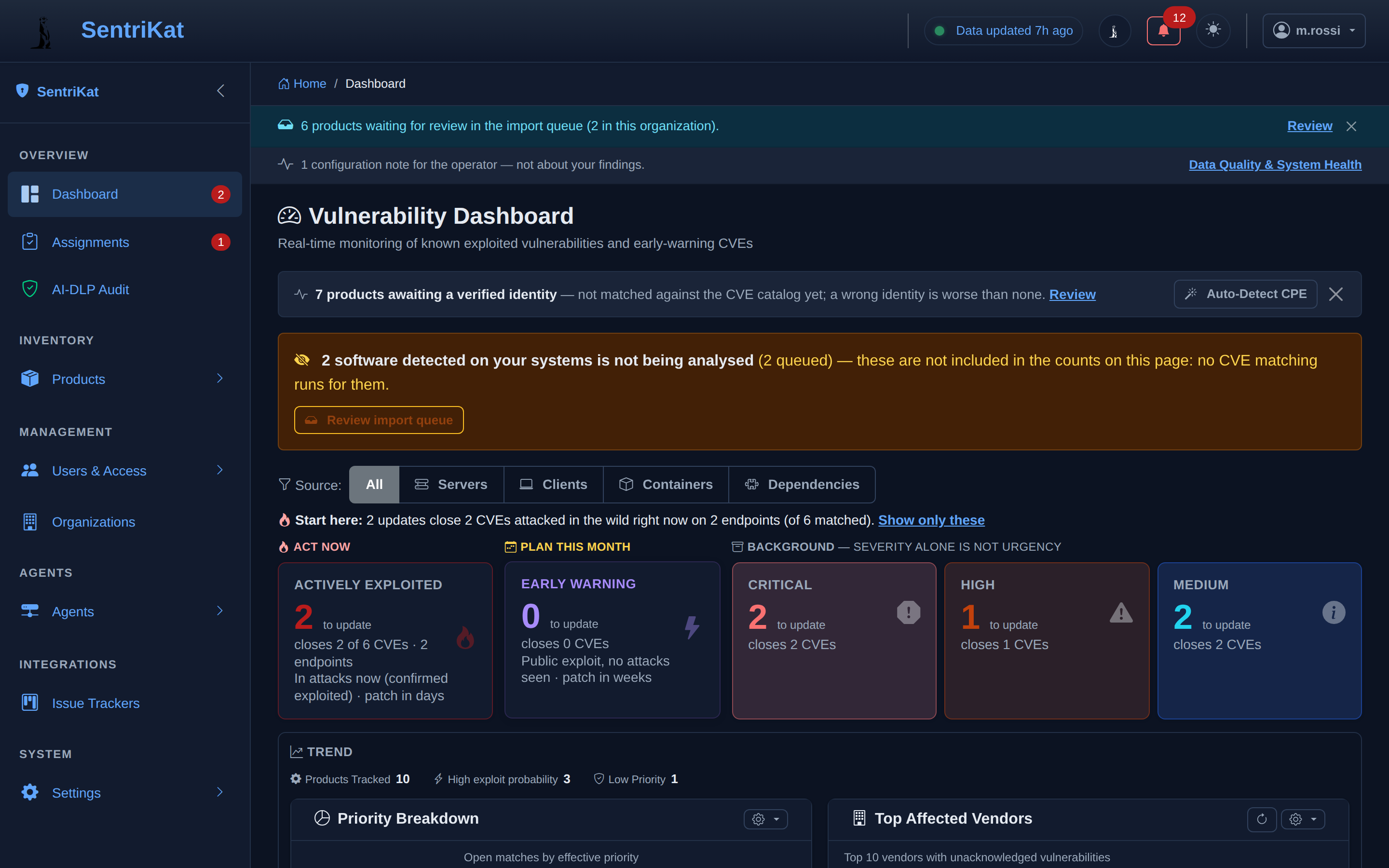
Start here
Above the bands, one line tells you the shortest useful thing:
Start here: 2 updates close 2 CVEs attacked in the wild right now on 2 endpoints (of 6 matched). Show only these
The first number is the one to act on. Updates, not CVEs. One package update usually closes several vulnerabilities at once, so the number of things to install is always smaller than the number of findings, and it is the number that matches the work.
The of 6 matched in brackets is the honest part: it says how much of your estate the sentence is talking about. Show only these filters the list to exactly those rows.
The three bands
Findings are grouped into three bands, in the order you should deal with them.
| Band | What is in it |
|---|---|
| ACT NOW | Confirmed as attacked in the wild, and it affects you |
| PLAN THIS MONTH | Serious, but not seen being attacked |
| BACKGROUND | Worth closing when you touch the machine anyway. The band says it in full: severity alone is not urgency |
Inside the bands are five tiles:
ACTIVELY EXPLOITED · EARLY WARNING · CRITICAL · HIGH · MEDIUM
The first two carry their own one-line rule, printed on the tile:
| Tile | What the tile says |
|---|---|
| ACTIVELY EXPLOITED | In attacks now (confirmed exploited), patch in days |
| EARLY WARNING | Public exploit, no attacks seen, patch in weeks |
Each tile shows a big number, which is how many updates to install, and next to it the CVEs those updates would close. That holds for all five: the big number is never a CVE count.
Early warning is the one worth explaining, because the name does not give it away. It holds findings that reached you before anyone confirmed they were being attacked: reported by one source ahead of the others, or still being analysed. The tile says it in three parts: a public exploit exists, no attack has been seen, and the patch window is weeks rather than days.
It is not a threshold on exploit probability, and it is not the same as a public zero-day.
Click a tile to filter the list below to that tile only.
The two banners
Above the list, two banners appear when they have something to say. Both are about coverage rather than vulnerabilities, and both are worth clearing.
N software detected on your systems is not being analysed
Software that an agent has reported but that has not been checked against the vulnerability data yet. The banner says the consequence out loud, and it is the reason to clear it: these are not included in the counts on this page. No matching runs for them, so they are not clean, they are unknown.
The button is Review import queue.
N products awaiting a verified identity
Products that could not be resolved to a published software identity. They carry two buttons:
- Review opens CPE Review, where you confirm or correct the identity by hand
- Auto-Detect CPE tries to resolve them automatically
Worth working through on day one. In steady state this number stays near zero.
Filtering
Source filters the list by where the software was found:
| Filter | What it shows |
|---|---|
| All | Everything |
| Servers | Software on machines reporting as servers |
| Clients | Software on workstations and laptops |
| Containers | Software inside container images |
| Dependencies | Libraries found in lockfiles |
Clicking a tile filters by band as well. The two combine.
Working a row
Each CVE in the list has a row menu with five actions:
| Action | What it does |
|---|---|
| Snooze | Hides the row for a while. It comes back |
| Mark as fixed | You have installed the update. The next scan confirms it |
| Risk exception | You accept the risk, with a reason and, if you want one, an end date. Administrators only. See Risk Exceptions |
| Assign | Give it to someone. See Remediation |
| Share | Make a read-only link for someone without an account |
Snooze and Mark as fixed are not the same thing, and the difference matters at audit time. Snooze means "not now". Mark as fixed means "done", and the next scan will disagree with you if it is not.
Those two also work on several rows at once: tick the rows and the selection bar at the top offers both.
Remediation Actions
Below the list, Remediation Actions groups the findings by the update that closes them: one row per update, with the CVEs it closes and the machines that need it.
This is the list to work from when you are actually patching. See Remediation.
The trend chart
The chart shows open findings over time, so you can see whether the backlog is going down.
For the history of how the matching itself is doing, see the Data & Quality view.
Sharing a view
Share on a row, or on the dashboard, creates a read-only link at /shared/<token> that works without an account.
You give it a name, an optional description, and an expiration. The link stops working on that date.
See Sharing.
Exporting
The dashboard itself has no export button. Exports live under Products → Exports, which produces twelve formats, SBOM and VEX among them.
See Exports.